
Outlook, Hotmail, and Live.com now work with Fambot

By David Reich, Founder & CEO of Fambot
Published: August 6, 2026 · Last updated: September 3, 2026
What’s new
Update: Fambot is now live on iOS and Android, with shared family accounts. Current setup can include Gmail, Outlook, Apple Calendar, Google Calendar, and WhatsApp.
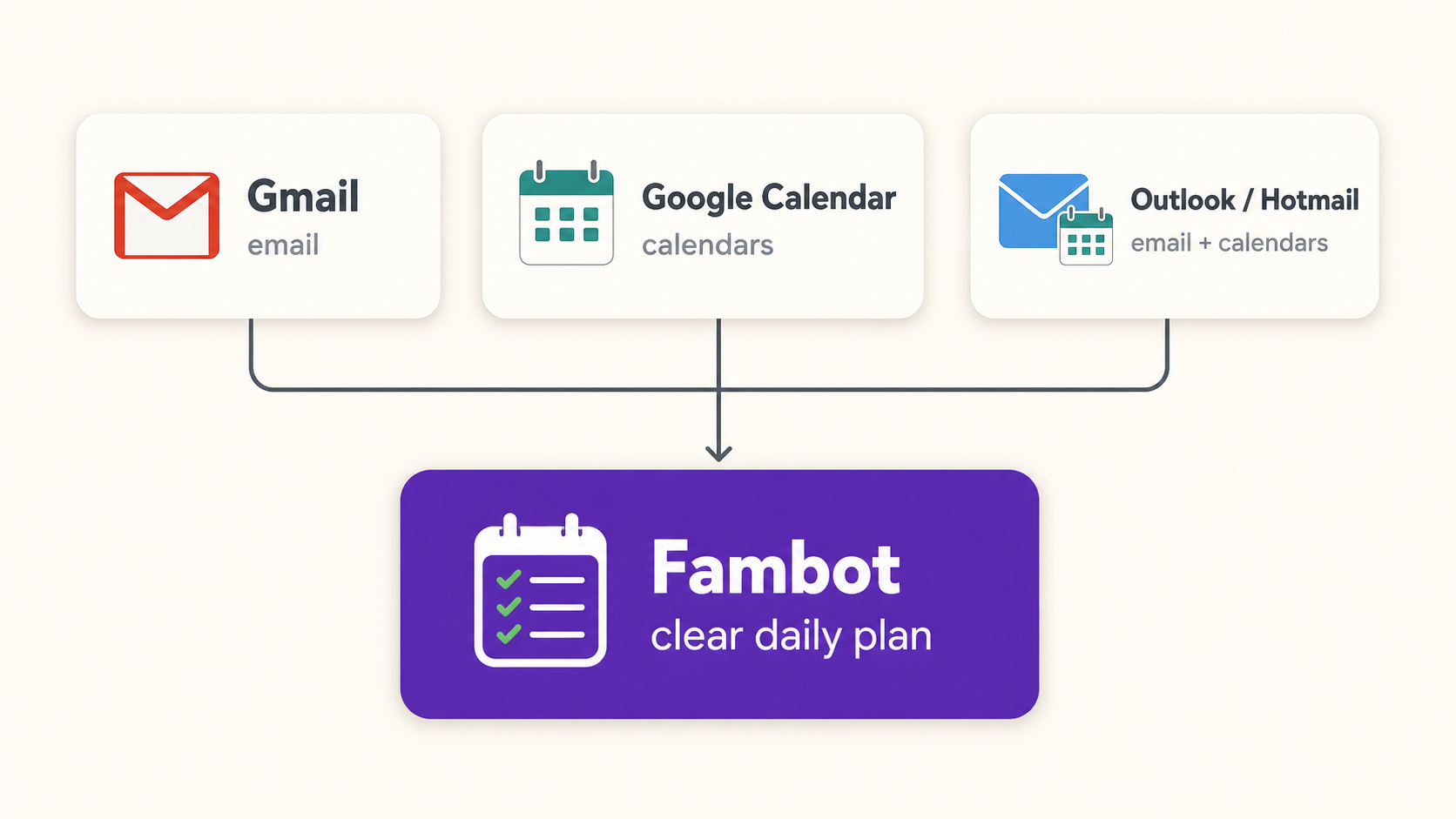
Fambot now supports Outlook, Hotmail, and Live.com accounts, plus Microsoft calendars. Families can still connect Gmail and Google Calendar, and each parent can add multiple email accounts, even across providers. That means a family can connect Gmail and Outlook side by side instead of making one inbox the center of the setup.
During signup, parents can choose Continue with Outlook, review Microsoft's consent screen, and connect the Microsoft inboxes or calendars they want Fambot to read. From there, Fambot can find school updates, sports schedules, camp PDFs, forms, deadlines, calendar changes, and one-off requests before they get buried.
What does this mean for Outlook, Hotmail, and Live.com families?
It means Fambot can now work where many family details already arrive. Parents with Microsoft email accounts can connect the inboxes and calendars they use for school updates, practice changes, forms, deadlines, and family plans, then let Fambot turn those details into events, to-dos, reminders, and a clear daily plan.
That matters because Fambot's value starts before anything reaches the calendar. It reads family-related emails, finds the details that matter for your family, adds what belongs on the calendar, flags what needs a decision, and sends a daily digest text message with what parents need to know, do, and decide.
For Outlook, Hotmail, and Live.com account holders, the setup now fits the real shape of family life better. If 1 parent uses Outlook, another uses Gmail, and the household needs 1 shared plan, Fambot can bring those accounts into the same family setup so parents and caregivers are working from the same details.
Do I need to connect every supported account?
No. Families do not need to connect every supported account. The best setup is the one that gives Fambot enough family context to help without adding access that is not useful. If school emails live in Outlook, Hotmail, or Live.com and the family calendar lives in Google Calendar, connect those. If everything is in Gmail, start there.
Families can also mix account types. One parent might connect Gmail while another connects Outlook, or the same parent might add multiple email accounts if school, sports, and family updates arrive in different places. The goal is not to connect everything; it is to connect the sources that carry useful family details.
Ask where the family details show up first. Fambot is strongest when it can find school updates, calendar changes, sports schedules, forms, payment deadlines, packing instructions, and one-off requests before parents have to copy/paste them somewhere else.
Parents can also adjust over time. If a calendar becomes less useful, disconnect it. If a school starts sending everything to a different account, connect that account instead.
Which connection should I choose first?
Start with the account that carries the highest-value family information. For many families, that is the inbox where school newsletters, teacher notes, activity updates, PDFs, and sign-up reminders arrive. For others, it is the calendar that already holds practices, appointments, and shared family events. Current setup can include Gmail, Outlook, Apple Calendar, Google Calendar, and WhatsApp.
If important family information is split across more than one inbox, start with the highest-value account, then add the others that regularly receive school, activity, or calendar updates.
Fambot does not ask families to rebuild their system by hand. The point is to connect the places the family already uses, then let Fambot do the reading, finding, adding, reminding, and answering.
What should I check before connecting any AI family assistant?
Before connecting Gmail, a Microsoft email account such as Outlook, Hotmail, or Live.com, or any calendar to an AI family assistant, check the consent screen, the privacy page, the disconnect path, and the data-use rules. A good setup should explain what access is requested, why it is needed, whether data is sold, shared, used for ads, or used to train AI models, and how to remove access later.
Use this quick checklist:
- Does the app use OAuth rather than asking for your email password?
- Does the consent screen match the feature you are trying to use?
- Can you disconnect the account later?
- Does the app say whether it sells, shares, or uses data for ads?
- Does it say whether your data can be used to train AI models?
- Does it explain deletion and retention in plain language?
For Fambot, the answer starts with trust. Fambot uses OAuth rather than storing email or calendar passwords, encrypts data in transit and at rest, does not sell or share personal information, does not allow family data to be used to train AI models, and gives users control to disconnect and delete.
From there, connect the supported sources that contain the family details you want Fambot to handle, including Gmail, Outlook, Apple Calendar, Google Calendar, and WhatsApp.
The bottom line
Fambot now supports Outlook, Hotmail, and Live.com accounts, plus Microsoft calendars, Gmail, Google Calendar, and Whatsapp. The setup choice should follow your family information: connect the inboxes and calendars where school updates, activity details, reminders, forms, and family plans actually live. Families can also combine account types, so Gmail, Outlook, Hotmail, Live.com, Google Calendar, and Microsoft calendars can work together when that reflects how the family actually operates.
Once connected, Fambot can read family-related sources, find what matters, add events, create to-dos, send a daily digest text message, and answer follow-up questions. Parents get a clear plan without hunting through every inbox or copying details by hand.
Sources
- Google Account Help - Used for Google third-party app access, consent review, and removal/disconnect behavior.
- Google OAuth consent screen - Used for Google OAuth consent-screen requirements and guidance to request only needed scopes.
- Google API Services User Data Policy - Used for Google rules on limited use of Google user data and requesting only permissions needed for app features.
- Microsoft identity platform - Used for Microsoft permission and consent model, including delegated permissions for Microsoft email and calendar access.
- Microsoft Graph permissions reference - Used for examples of Microsoft Graph mail and calendar permission scopes such as Mail.Read and Calendars.ReadBasic.
- Microsoft Support - Used for how users can review or revoke app permissions in Microsoft's My Apps portal.
- Fambot Trust and Safety - Used for Fambot-specific privacy, OAuth, data-use, encryption, disconnect, and deletion claims.